
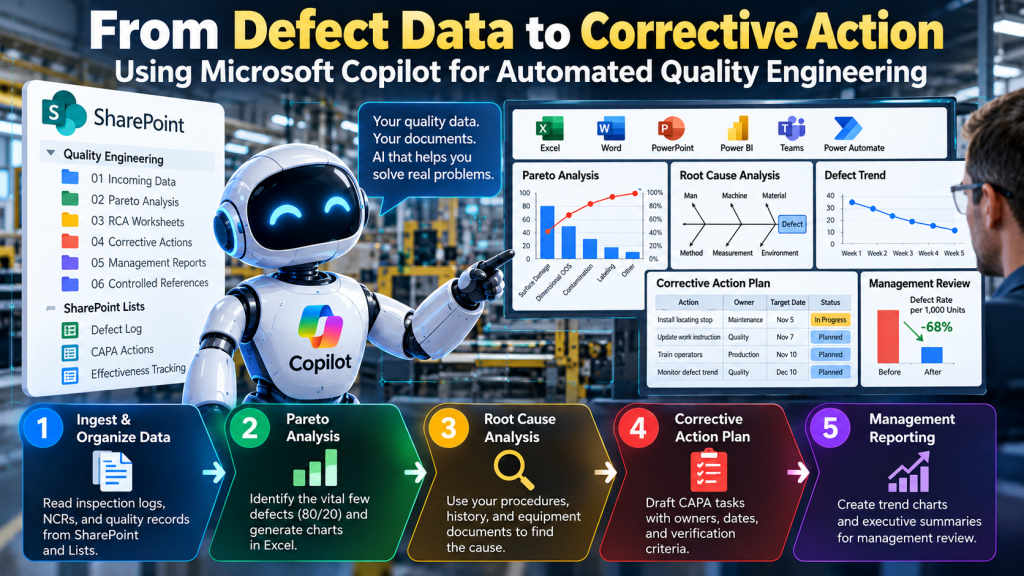
Microsoft Copilot can do much more than answer questions about documents. When combined with SharePoint, SharePoint Lists, Copilot Studio, Excel, Power Automate, and the rest of Microsoft 365, it can become the foundation for an AI-assisted quality-engineering workflow that moves from raw defect data to Pareto analysis, root-cause investigation, corrective action, and management reporting. The objective is not to give AI uncontrolled authority over quality decisions. The goal is to automate repetitive analysis while keeping process ownership, corrective-action approval, and final quality decisions under human control.
A practical workflow looks like this:
SharePoint / Lists
        ↓
Defect Aggregation
        ↓
Pareto Analysis
        ↓
Root Cause Analysis
        ↓
Corrective Action
        ↓
Management Reporting
That changes Copilot from a document-search assistant into part of an operational quality system.
Why SharePoint Is a Strong Foundation for AI-Assisted Quality
Many organizations already store quality information across Microsoft 365 using SharePoint:
- nonconformance reports,
- inspection records,
- standard operating procedures,
- work instructions,
- maintenance records,
- CAPA files,
- equipment manuals,
- management-review records,
- customer complaints.
Copilot Studio can use SharePoint sites, folders, and SharePoint Lists as knowledge sources. When you register SharePoint as a knowledge source, the agent retrieves information from that location and respects the user’s SharePoint permissions. Microsoft also supports SharePoint Lists as structured knowledge sources, including analytical and aggregation queries over list data.
That creates two useful layers:
- SharePoint libraries for documents and controlled knowledge.
- SharePoint Lists for structured operational data such as defects, NCRs, complaints, or corrective-action status.
Together, these layers support a closed-loop quality workflow.
Step 1: Structure the Quality Environment
The first step is to create a predictable environment.
A SharePoint quality site might contain libraries such as:
Quality Engineering
│
├── 01 Incoming Quality Data
├── 02 Pareto Analysis
├── 03 Root Cause Analysis
├── 04 Corrective Actions
├── 05 Management Reports
└── 06 Controlled References
The Controlled References library might include:
- procedures,
- work instructions,
- specifications,
- equipment manuals,
- approved forms,
- historical CAPAs.
Structured defect data can live in a SharePoint List.
For example:
| Date | Part | Defect | Quantity | Shift | Machine | NCR |
|---|---|---|---|---|---|---|
| Oct. 1 | A102 | Scratch | 4 | 1 | M-04 | NCR-142 |
| Oct. 1 | A102 | OD high | 2 | 1 | M-04 | NCR-143 |
| Oct. 2 | A102 | Surface mark | 5 | 2 | M-04 | NCR-147 |
This distinction matters. Documents provide context. Lists provide structured data. Copilot Studio can work with both. Microsoft specifically notes that SharePoint Lists can support analytical queries such as counts, averages, and category comparisons.
Step 2: Normalize the Defect Data
Quality data is rarely perfectly standardized.
One operator might enter:
- scratch,
- scratched,
- surface damage,
- cosmetic mark.
Another might use a completely different description for the same defect. The first AI task should therefore normalize these descriptions.
A Copilot-based workflow can review the incoming descriptions and map them into controlled categories such as:
Surface Damage
Dimensional Out-of-Spec
Contamination
Missing Component
Assembly Error
Labeling Error
Functional Failure
The original description should never be destroyed.
The structured record should preserve:
Original Description
Normalized Defect Category
For example:
| Original Description | Normalized Category |
|---|---|
| scratched edge | Surface Damage |
| OD too large | Dimensional Out-of-Spec |
| black particles | Contamination |
If Copilot cannot classify an entry confidently, it should flag it for review instead of inventing a category. That is an important control. AI should help structure the evidence, not rewrite history.
Step 3: Build the Pareto Analysis
Once the defect categories are standardized, the next step is Pareto analysis.
The workflow can:
- count defects by category,
- calculate percentage of total,
- sort defects from largest to smallest,
- calculate cumulative percentage,
- identify the dominant categories,
- generate a Pareto chart,
- select the priority defect for investigation.
For example:
| Defect | Count | % Total | Cumulative % |
|---|---|---|---|
| Surface Damage | 147 | 42% | 42% |
| Dimensional OOS | 81 | 23% | 65% |
| Contamination | 53 | 15% | 80% |
| Labeling | 37 | 11% | 91% |
| Other | 31 | 9% | 100% |
The AI does not need to treat 80/20 as a rigid rule. The management question is simpler: Which defect represents the largest current opportunity? Structured SharePoint List data can be queried analytically through Copilot Studio, and the resulting data can be passed into Excel or another analytical layer for charting and further analysis.
Step 4: Select the Largest Defect
Suppose Surface Damage is the largest defect category. The workflow now narrows its focus.
Instead of attempting to investigate every issue simultaneously, the agent creates a bounded quality problem:
Priority Defect:
Surface Damage
Observed Frequency:
147 defects
Contribution:
42% of reported defects
Investigation Scope:
Machine M-04, Parts A102/A103, prior 30 days
That becomes the input to the root-cause stage. This narrowing matters because AI systems can get noisy when asked to investigate too many possible problems at once. Pareto first. Root cause second.
Step 5: Use Copilot to Support Root Cause Analysis
The RCA agent can now search the relevant SharePoint knowledge sources.
That might include:
- machine setup instructions,
- preventive-maintenance history,
- prior NCRs,
- quality procedures,
- operator instructions,
- inspection criteria,
- historical CAPAs.
Copilot Studio searches the SharePoint sources registered with the agent rather than indiscriminately searching every SharePoint location. Microsoft notes that the agent searches the registered site or folder and its subpaths, while respecting user permissions. The agent can organize potential causes using familiar quality methods.
5-Why Example
Problem: Finished parts have scratches.
Why 1: Why are parts being scratched?
Parts contact the transfer guide.
Why 2: Why do they contact the transfer guide?
Guide position varies after setup.
Why 3: Why does guide position vary?
Operators position it manually.
Why 4: Why is positioning inconsistent?
No fixed locating stop is used.
Why 5: Why is there no fixed locating stop?
The work instruction defines the position visually rather than dimensionally.
This analysis is useful—but it is still a hypothesis until evidence confirms it.
Step 6: Populate a Fishbone Analysis
The same workflow can organize possible causes into an Ishikawa structure:
| Category | Potential Cause |
|---|---|
| Man | Setup varies by operator |
| Machine | Transfer guide moves |
| Material | Protective film inconsistent |
| Method | No dimensional setup standard |
| Measurement | Guide position not measured |
| Environment | Debris accumulates near guide |
This gives the quality engineer a structured hypothesis set. The agent can then search historical records for evidence related to each cause.
Step 7: Do Not Let AI Invent the Root Cause
This is one of the most important controls in the entire workflow. AI models are very good at producing plausible explanations. Plausible is not the same as proven.
The workflow should explicitly separate:
OBSERVED FACT
POTENTIAL CAUSE
EVIDENCE NEEDED
VERIFIED CAUSE
For example:
| Potential Cause | Evidence | Status |
|---|---|---|
| Guide misalignment | Scratch location matches guide contact area | Likely |
| Material contamination | No contamination found on affected parts | Rejected |
| Operator handling | No correlation by operator | Weak |
| Missing protective film | Film present on affected parts | Rejected |
The agent can help determine what evidence would confirm or reject each hypothesis. But the process owner or quality engineer should determine when the evidence is sufficient to establish root cause.
Step 8: Draft the Corrective Action
Once evidence supports the root cause, the next stage is corrective action.
Copilot can draft an action plan such as:
| Action | Owner | Due Date | Verification |
|---|---|---|---|
| Install fixed locating stop | Maintenance | Nov. 5 | Repeatability within defined tolerance |
| Revise setup instruction | Quality | Nov. 7 | Controlled revision released |
| Train operators | Production | Nov. 10 | Training completed |
| Monitor defect rate | Quality | Dec. 10 | 30-day trend reviewed |
The workflow can also identify:
- required document changes,
- training needs,
- validation requirements,
- inspection changes,
- effectiveness criteria.
But AI should normally draft corrective action—not approve it.
Step 9: Add a Human Approval Gate
Corrective actions can change real processes.
They may affect:
- equipment,
- product specifications,
- customer requirements,
- validated processes,
- work instructions,
- cost,
- delivery,
- regulatory obligations.
That is where a human-in-the-loop gate makes sense.
The workflow becomes:
Copilot drafts corrective action
        ↓
Quality / Process Owner reviews
        ↓
Approve / Revise / Reject
        ↓
Implementation
Power Automate or Copilot Studio workflows can be used to route the action to the appropriate owner or manager. Human review belongs here because this is where analysis becomes an operating decision.
Step 10: Track Corrective Action in SharePoint
Once approved, store the corrective-action plan in a SharePoint List.
For example:
| CAPA | Action | Owner | Due | Status | Effectiveness |
|---|---|---|---|---|---|
| CA-102 | Install guide stop | Maintenance | Nov. 5 | Complete | Pending |
| CA-102 | Revise WI-14 | Quality | Nov. 7 | Complete | Pending |
| CA-102 | Train operators | Production | Nov. 10 | Complete | Pending |
| CA-102 | Review defect trend | Quality | Dec. 10 | Open | Pending |
That makes corrective-action status available to Copilot and reporting workflows.
Step 11: Generate Trend Charts
The process does not end when the corrective action is completed.
The question management should ask is: Did it actually work?
The reporting stage can calculate:
- defect count by week,
- defect rate per 1,000 units,
- scrap cost,
- repeat NCRs,
- CAPA completion,
- effectiveness status.
For example:
Defects per 1,000 units
Week 1    31
Week 2    27
Week 3    21
Week 4    14
Week 5     8
This data can be visualized in Excel or Power BI. Useful management charts include:
Pareto Chart
Shows the largest defect categories.
Defect Trend
Shows whether the priority defect is improving.
Before-and-After CAPA Comparison
Compares the baseline period with the post-action period.
Corrective-Action Status
Shows open, overdue, completed, and verified actions.
Step 12: Build the Management Review Summary
The final agent can assemble a concise management summary.
For example:
Priority Issue: Surface Damage
Pareto Position: Largest reported defect category.
Root Cause: Transfer-guide position varies during setup because the current method does not provide a repeatable locating reference.
Corrective Action: Fixed stop installed, setup instruction revised, and operators retrained.
Effectiveness Measure: Monitor surface-damage rate for 30 days.
Current Status: Implementation complete; effectiveness verification in progress.
That summary can feed:
- management review,
- daily operations meetings,
- weekly quality reviews,
- CAPA reports,
- leadership dashboards.
Should You Build Five Separate Agents?
Not necessarily.
A common mistake is assuming every step needs a separate autonomous agent. For many companies, the simpler design is one orchestrated quality workflow with defined stages:
1. Normalize Data
2. Pareto Defects
3. Analyze Root Cause
4. Draft Corrective Action
5. Report Trends
Each stage has:
- defined inputs,
- defined outputs,
- rules,
- stop conditions.
Copilot Studio acts as the orchestration layer. That is often easier to manage than several autonomous agents communicating with each other.
A Practical Microsoft Architecture
A relatively low-code Microsoft implementation could look like:
SharePoint Libraries
        │
        ├── Procedures
        ├── NCRs
        ├── CAPAs
        └── Equipment Records
        │
        ▼
SharePoint Lists
        │
        ├── Defect Log
        ├── CAPA Actions
        └── Effectiveness Data
        │
        ▼
Copilot Studio
        │
        ├── Normalize Defects
        ├── Pareto Analysis
        ├── Root Cause Support
        ├── Corrective Action Drafting
        └── Management Reporting
        │
        ▼
Excel / Power BI / Word / Teams
SharePoint is particularly useful because documents and structured list data can both serve as agent knowledge, while permissions remain tied to the underlying Microsoft environment.
Why SharePoint Lists Matter
For this use case, SharePoint Lists may be more important than SharePoint document libraries. Documents are valuable for contextual knowledge. But Pareto analysis depends on structured rows.
A list such as:
Date
Product
Defect Category
Quantity
Machine
Shift
NCR
Disposition
gives Copilot a structured dataset for analytical reasoning. Microsoft’s current Copilot Studio documentation specifically supports analytical and aggregation queries over SharePoint List data, including questions such as which category has the highest count. That is directly applicable to defect ranking.
Keep Source Data and AI Output Separate
A strong implementation should separate original records from AI-generated analysis.
For example:
RAW QUALITY RECORDS
        ↓
AI ANALYSIS
        ↓
HUMAN-APPROVED QUALITY RECORDS
Do not allow an AI-generated root-cause hypothesis to silently overwrite an NCR. Do not allow an AI-generated corrective action to become an approved CAPA merely because the model wrote it. Maintain provenance.
Start With One Closed Quality Loop
Do not begin by attempting to automate the entire QMS.
Start with:
Defect Log
→ Pareto
→ Top Defect
→ RCA
→ Corrective Action
→ Trend Verification
Choose a process where:
- defect data already exists,
- categories are reasonably understood,
- relevant procedures are available,
- management cares about the result.
Run the process manually with Copilot first. Then formalize the workflow. Then automate the repeatable pieces.
From Copilot Search to AI-Assisted Quality Engineering
The real opportunity is not simply asking Copilot: Find the last corrective action involving scratches.
A more powerful workflow asks: What defects occur most often?
then: Which defect should we investigate first?
then: What do our procedures, equipment records, and historical NCRs suggest?
then: What evidence do we need to confirm the cause?
then: What corrective action should we consider?
and finally: Did the corrective action reduce the defect?
That moves Microsoft Copilot from document retrieval into AI-assisted quality engineering. The technology already provides many of the building blocks: SharePoint for controlled knowledge, Lists for structured operational data, Copilot Studio for agent orchestration, and Microsoft 365 tools for analysis, communication, and reporting. The real competitive advantage comes from connecting those tools into a disciplined quality workflow. AI does the repetitive searching, organizing, analyzing, and drafting. Quality professionals remain responsible for evidence, decisions, corrective-action authorization, and effectiveness. That is a much more useful role for AI than simply giving people another chatbot. If your organization runs on Google Workspace, see our Gemini quality-engineering workflow.


